How to Set Up Roblox Parental Controls and Account Linking
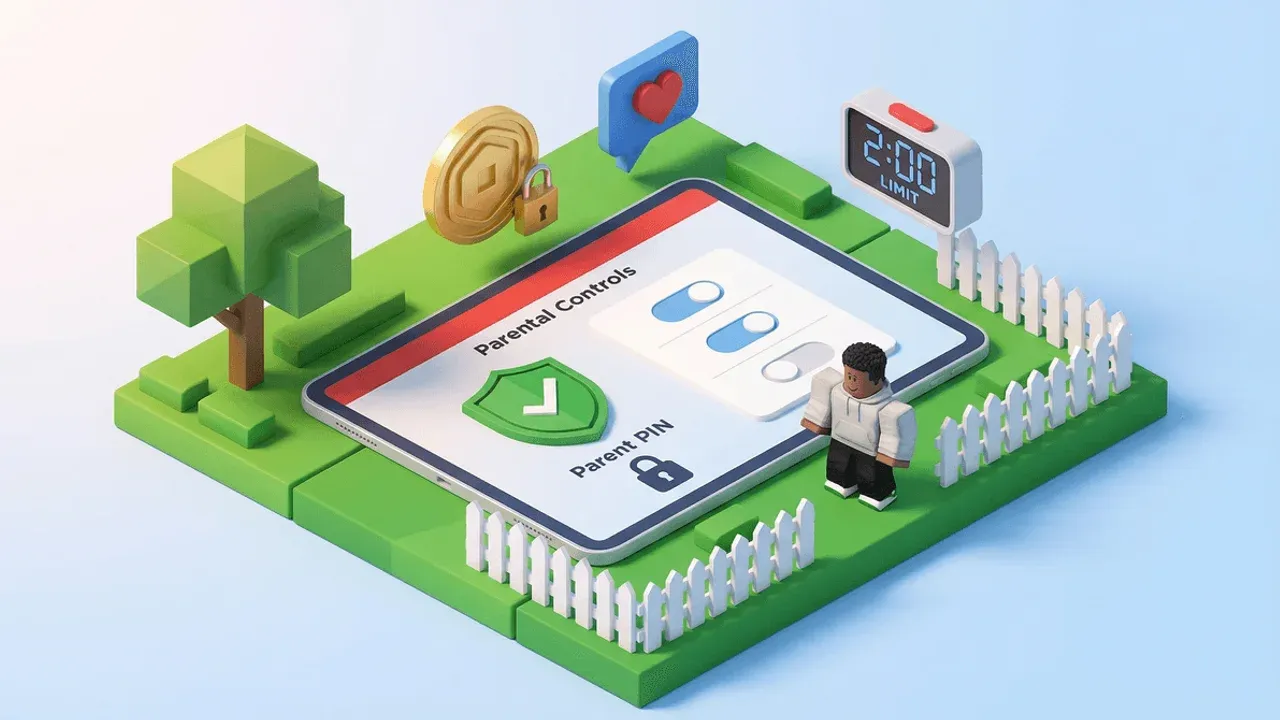
Before you can configure any safety settings in Roblox, you need to establish a secure foundation. This is where you create a parent account and link it to your child’s profile—a crucial step that unlocks all other parental controls. Trust me, setting this up first will save you a ton of frustration later.
Official Roblox artwork.
Your first task is to create your own Parent Account. You’ll need to do this on Roblox's website or app by going to Settings and adding your personal email. Roblox will then require you to verify your age, typically using a credit card or government-issued photo ID. This verification is essential, as it confirms you as an adult and grants you the authority to manage linked accounts.
Next, you’ll link this parent account to your child’s profile. On your child’s device, navigate to Settings > Parental Controls. Here, you’ll select [Add Parent], enter the email you just verified, and then click [Agree] on the child’s device to finalize the link. Once linked, your parent dashboard becomes the central command center for managing everything from screen time to spending.
Complete this linking process with your child in a calm moment. It’s a great opportunity to explain that these are family safety tools, not a punishment, and that you’re working together.
With accounts linked, it’s time to lock everything down. Head to Settings > Security on your child’s account. The two most critical features here are the Account PIN and 2-Step Verification.
- First, toggle on the Account PIN. This creates a 4-digit code that prevents anyone from changing your carefully configured safety settings without your knowledge. It’s your master lock.
- Second, enable 2-Step Verification. You can choose to have verification codes sent via Email or, for stronger security, set it up with an Authenticator App. This adds a vital extra layer of defense against account hijacking, making it much harder for "beamers" or scammers to break in.
With your parent account created, linked, and the security PIN and 2FA activated, you’ve built a secure fortress. Now you’re ready to move on to the next step: fine-tuning what your child can see and do.
How to Configure Roblox Content Maturity and Experience Filters
Now that your child's Roblox account is linked to yours, it's time to build their digital playground. This next step is all about setting up the guardrails—using the platform's content maturity and filtering systems to ensure the games they can find and play are age-appropriate. Think of it as curating the library they can browse.
In Roblox, not all experiences are created equal. The platform uses a four-tier Content Maturity rating system to categorize games, which you control through Settings > Parental Controls. Here, you'll select from Minimal, Mild, Moderate, or Restricted.
- Minimal is the safest setting, ideal for young children. It filters for "All Ages" content and blocks experiences with realistic blood, heavy fear elements, or any content beyond occasional mild cartoon violence.
- Mild also allows "All Ages" but includes a broader range, like repeated mild violence or crude humor.
- Moderate is where the line is drawn. This setting is for "Ages 9+" and, by default, blocks children under 9. It permits moderate violence and realistic blood. For many parents, this is the maximum setting they'll consider for pre-teens.
- Restricted is for ages "17+" and requires ID verification to access. It contains the strongest content, including gambling themes and strong language, and should be kept blocked for children.
Based on independent safety reports, setting the maturity to Minimal is strongly recommended for children under 13. It's the most effective filter against accidentally stumbling into thematically mature "social hangout" experiences.
But what if a specific game slips through, or your child hears about a trending game you'd rather they avoid? You have a surgical tool for that. Navigate to any Experience Page, click the three-dot menu (⋮) near the title, and select Block. This completely prevents the game from being launched on your child's account, though they can still see it in search results. It's perfect for permanently removing a single problematic title.
Trust me, taking these ten minutes to configure Content Maturity Levels and use Experience Blocking gives you immense peace of mind. You're not just hoping for the best—you're actively defining the boundaries of their Roblox world.
Managing Roblox Chat Filtering and Privacy Settings
This is where you build the digital moat around your child's castle. In Roblox, the chat and privacy settings are your most powerful tools for controlling who gets to interact with your child and what they can see or hear. Let’s lock them down.
Controlling Who Can Communicate
Head to Settings > Privacy. This menu is your command center for all social interaction on the platform. For maximum safety, you’ll want to manually adjust a few key options.
First, set ‘Who can message me’ and ‘Who can chat with me’ to either Friends or No one. This ensures that only people you’ve personally approved can send direct messages or chat with your child within games. For children under 10, “No one” is the safest bet, while “Friends” can be appropriate for older kids if you’ve vetted their friend list. Next, manage ‘Who can invite me to private servers’—this should also be set to Friends or No one. Private servers can be wonderful for playing only with known friends, but you don’t want strangers sending invites.
After you set these, go to the Security tab and create a strong Account PIN. This locks these settings so your child can’t accidentally (or purposefully) change them back.
Understanding Roblox’s Built-in Filters
Roblox employs a platform-wide automated system called Filtered Chat. This is powered by the Sentinel AI, which scans billions of messages daily to mask profanity and detect attempts to share personal information like phone numbers or addresses. It’s a robust first line of defense, but it’s not foolproof—determined users can sometimes bypass text filters with creative misspellings.
This is why your manual privacy settings are so crucial. The AI filter works in the background, but your restrictions determine who even gets the chance to send a message in the first place.
The Critical Voice Chat Setting
One of the most important toggles in this menu is for Spatial Voice. Unlike text chat, voice chat is not monitored in real-time, allowing for live, unmoderated conversations. This feature requires age verification and is limited to users 13 and up, but if it’s enabled, you should be aware of the risks.
For any child under 13, Spatial Voice should be toggled off in Settings > Privacy. For teenagers, have a direct conversation about leaving any voice chat that makes them uncomfortable and reporting issues, as the live nature makes it harder to capture evidence.
⚠️ Watch out: The single biggest red flag in any online interaction is a request to “move to Discord” or another app. If someone is pushing your child to chat off-platform, they are trying to escape Roblox’s filters and moderation. Make a non-negotiable family rule against this.
With these communication channels restricted and filtered, you’ve significantly narrowed the window for unwanted contact. You’re not just setting up a game—you’re building a safer social space.
How to Use the Roblox Report Abuse Tool Effectively
Knowing how to report a player who’s crossing the line is your most powerful tool for keeping Roblox a safe space. This isn't about tattling—it's about protecting your child and the wider community from harassment, scams, and inappropriate behavior. Roblox's moderation system relies heavily on player reports to catch violations, and doing it correctly makes all the difference.
Here’s a complete walkthrough of how to use the Report Abuse tool effectively in any situation.
Reporting a Player During a Game
This is for immediate issues, like someone exploiting, bullying, or sending threatening messages in the chat.
On PC, press the [Esc] key to open the menu, find the offending player in the list, and click the flag icon next to their name. You'll be prompted to select a reason—like Exploiting/Cheating, Bullying or Harassment, or Threatening—and add specific details about what happened.
On Mobile, tap the three-line menu icon in the top-left corner, go to the Players tab, tap the player's name, then select Report. Choose the violation type and provide context.
For the best results, report immediately while you're still in the same server. Include the exact game name and quote any offensive messages in the details box. This gives the moderation team the clearest picture.
Reporting from a Player’s Profile
Use this method for profile-specific violations or if you need to report someone after the fact—like for an inappropriate username, a bio requesting personal information, or a concerning status message.
Navigate to the user's profile, click the three-dot menu (⋮) near their name, and select Report Abuse. Choose the relevant category and describe the issue. For example, if their bio says "DM me on Discord," note that as a personal information request.
Reporting a Private Message (PM)
If someone sends a harassing message, a phishing link, or anything that violates the rules, you can report it directly from your inbox.
Open the Messages section, click into the specific message thread, and look for the flag icon (Report button). Select a violation type like Harassment or Scam/Phishing, add details, and submit.
⚠️ Critical: Do not delete the message before reporting. The message content is the primary evidence for the moderation team. Deleting it removes your proof.
Reporting a Game (Experience) or Item
Found a game with inappropriate content or a catalog item that violates community standards? You can report the entire experience or specific asset.
Go to the game's main page or the item's catalog page, click the three-dot menu (⋮) near the title, and select Report Abuse (or Report Item for catalog items). Choose a category—such as Inappropriate Content or Phishing—and provide a specific description of what's wrong and where it occurs in the game.
What Happens After You Report?
Roblox does not send confirmation emails to protect its moderation process. Reports go into a queue, with high-priority issues (like threats or explicit content) reviewed by human moderators within hours. Standard reports (harassment, scamming) are typically reviewed within 24–72 hours.
You won't get a personal update on the action taken, but you might observe outcomes—like a banned player's account disappearing or a reported game being taken down. If you believe an urgent report hasn't been addressed, you can submit a follow-up via roblox.com/support using the Child Safety category for escalation.
Remember, reporting is about community protection. By taking these steps, you’re not just solving a problem for your child—you’re helping make Roblox safer for everyone.
Roblox Safety: Blocking Users and Preserving Evidence
When something goes wrong in Roblox—a threatening message, a scam attempt, or any interaction that makes your child feel unsafe—you need to act fast. This isn't just about stopping the immediate problem; it's about protecting your child and helping to keep the wider community safe. Here’s what to do, step by step.
The One-Two Punch: Block and Report
Your first move should almost always be a combination of two actions: blocking for immediate personal safety and reporting to submit the behavior for official review.
- Blocking is your personal shield. It prevents a specific user from seeing your child’s profile, sending them messages, or joining the same private servers. It’s perfect for stopping one-off or minor nuisances cold.
- Reporting is the community shield. It sends the user’s behavior to Roblox’s moderation team for investigation, which can lead to warnings, suspensions, or even bans, protecting other children.
In most cases of harassment, scamming, or explicit content, do both. Report the user to get them on Roblox's radar, then block them to immediately stop them from contacting your child.
To block a user, navigate to their profile page. Click the three-dot menu (⋮) near their username and select Block User. This severs all direct lines of communication instantly.
Preserving the Evidence: Your Digital Paper Trail
If the situation is serious—like grooming behavior, threats, or attempts to get personal information—reporting to Roblox is just step one. You must also preserve evidence for potential escalation to authorities. A screenshot is your most powerful tool here.
When you take a screenshot, make sure it captures these four critical details:
- The offending player’s Username
- The exact Message or in-game behavior
- The Game Name (or "Experience") where it happened
- The Timestamp (date and time)
Save these screenshots in a dedicated folder on your device. This builds a clear case if you need to show a pattern of behavior to Roblox support or, in severe cases, to law enforcement.
⚠️ Watch out: If you're reporting a private message, do not delete the message thread before reporting it. Deleting it removes the evidence Roblox needs to take action.
How to Take a Screenshot on Any Device
The method varies by platform, but it’s quick to learn:
- On a PC: Press [Windows+Shift+S] to use the Snipping Tool, then paste the screenshot into an app like Paint to save it.
- On a Mobile device (Android): Press [Power+Volume Down] simultaneously.
- On Xbox: Press the [Xbox button+Y] to capture a screenshot.
When to Escalate Beyond Roblox
Roblox's moderation is vital, but for the most severe safety concerns, it's a secondary step. If you encounter situations involving grooming, sexually explicit material, threats of real-world violence, or someone acquiring your child’s personal information (like their real name, school, or address), your action plan changes.
- Preserve all evidence with screenshots as described above.
- Do not confront the person.
- Contact the proper authorities immediately, such as the National Center for Missing & Exploited Children at CyberTipline.org or your local police.
- Then, submit a follow-up report to Roblox Support via their website using the 'Child Safety' category to ensure they are aware of the law enforcement report.
This process can feel overwhelming, but having a plan turns panic into purposeful action. By knowing how to block, report, and properly document what happened, you’re not just reacting—you’re taking control to ensure your child’s safety in Roblox.
Identifying and Preventing Cybergrooming on Roblox
This is the most important conversation you’ll have about Roblox safety. While the platform’s settings and filters create a digital fence, cybergroomers are experts at luring children beyond its boundaries. In Roblox, the gravest threat isn't always what's said in the chat—it's the request to leave the platform entirely.
Cybergrooming is the process where an adult builds a deceptive, trusting relationship with a child online to manipulate, exploit, or harm them. On Roblox, this often follows a predictable, four-phase playbook that every parent should recognize.
The Predator’s Playbook: From "Hi" to Harm
First, they make Initial Contact. This could be a random friend request, a compliment on your child’s avatar, or an offer to help them in a game. The goal is simple: get a foot in the door.
Next comes Building Trust. The predator poses as a peer or a cool older friend, showing interest in your child’s life, sharing fake interests, and maintaining regular contact. This is often when small gifts like Robux or Game Passes appear—a classic “trust-builder” that makes the child feel special and indebted.
The third phase is Isolation. Here, the predator works to separate your child from their support system. They’ll demand secrecy with phrases like “You can’t tell anyone about this” or “Your parents wouldn’t understand.” They may turn your child against you, suggesting you’re overly strict or wouldn’t “get” your friendship.
Finally, they cross Boundary Lines. The conversation escalates to personal questions about school, home, or appearance, requests for photos, sexually explicit talk, or even suggestions to meet in person.
The Critical "Move to Discord" Trap
The most dangerous pivot in this process is the 'Move to Discord' Trap. Once trust is built within Roblox, the predator’s primary goal is to shift the conversation to an external, unmonitored platform like Discord, Snapchat, or Telegram. This is a critical red flag.
⚠️ This is the trap: Once they move off Roblox, all of Roblox’s Sentinel AI filters, chat monitoring, and reporting tools become useless. The predator can operate in the shadows, escalating their requests without platform oversight.
This off-platform migration is a common thread in real-world exploitation cases. It’s why establishing a clear, non-negotiable Family Rule is your most powerful defense: Never move conversations off-platform with a stranger. Frame it not as a punishment, but as a safety law, like looking both ways before crossing the street. Assure your child they will never be in trouble for telling you if someone asks them to go to another app—in fact, they’ll be praised for following the rule.
Recognizing the Warning Signs
Stay alert for changes in your child’s behavior:
- Increased secrecy: Hiding their screen, closing apps quickly, or playing at unusual hours (especially late at night).
- Unexplained gifts: Suddenly having new Robux or avatar items without a clear source.
- Mood changes: Withdrawal, anxiety, or aggression related to their online time.
- New apps: Downloading Discord, WhatsApp, or Snapchat after mentioning a new “friend.”
What to Do If You Suspect Grooming
If warning bells ring, stay calm. Your reaction sets the tone.
- Talk gently with your child. Focus on support, not blame. Say, “I’m here to help you, no matter what.”
- Preserve all evidence. Take screenshots of every conversation, the predator’s profile, and any gifts. Note usernames, game names, and timestamps.
- Secure the account. Immediately block the user and change your child’s password.
- Report to the authorities FIRST. For serious concerns like grooming, explicit material, or threats, your first call is not to Roblox. It is to the National Center for Missing and Exploited Children (NCMEC) at CyberTipline.org or your local police. They have the tools to investigate these crimes.
- Then, report to Roblox. Use the Report Abuse tools covered in previous sections to submit the evidence to Roblox’s moderation team.
Your vigilance and an open, trusting dialogue are the ultimate safeguards. With the right Family Rule in place and knowledge of the 'Move to Discord' Trap, you empower your child to navigate their digital world with confidence and safety.
Controlling Roblox Spending and Avoiding Scams
Your adventure in Roblox is filled with creativity and fun, but the platform’s virtual economy and persistent scams can turn a joyful experience into a source of financial stress. This final section equips you with the essential tools to lock down spending and spot the most common traps, ensuring your child’s playtime is safe and secure.
Locking Down In-Game Spending
The first line of defense against surprise charges is Roblox’s built-in spending controls. Head to Settings > Parental Controls on your linked parent account. Here, you can set a Monthly Spending Limit to any [Dollar Amount] you choose. This creates a hard cap on Robux purchases made with any payment method linked to the account.
Combine this with the Spending Notifications toggle in the same menu. When turned on, it sends an alert for every single transaction, giving you real-time oversight instead of discovering charges later on a statement.
Remember, Roblox’s virtual currency is Robux, and its value can be abstract for kids—approximately 80 Robux ≈ $1 USD. It’s used for everything from avatar cosmetics to special game passes, and the platform is designed to encourage its use. For ultimate control, remove saved credit cards entirely and consider using physical Roblox gift cards for a set allowance, which bypasses the monthly limit but gives you total control over the amount introduced.
Spotting and Stopping Scams
If managing spending is about control, avoiding scams is about awareness. The most pervasive threats are phishing attempts designed to steal accounts.
The golden rule for Phishing Defense is simple but critical: [!] Never enter login info into 'Free Robux Generator' or external giveaway sites. These are always scams. They may look official, with fake Roblox logos and promises of thousands of free Robux, but their only purpose is to harvest your child’s username and password. Once they have this, attackers (often called “beamers”) can hijack the account, steal valuable items, and even access linked payment methods.
These scams don’t just live on random websites; they’re promoted within Roblox through private messages, in-game chat, and even on shady social media videos. Teach your child that free Robux offers are always fake, and that real Robux only come from official purchases, gifts from known friends, or legitimate developer earnings.
Putting It All Together
With these financial safeguards in place, you’ve built a strong perimeter. You’ve set a Monthly Spending Limit to prevent overspending, enabled Spending Notifications for full transparency, and armed your family with the knowledge to avoid phishing traps. This proactive approach turns Roblox from a potential financial worry into a secure space for play and creativity.
Trust me, taking these steps now saves a tremendous amount of frustration later. With spending locked down and scam awareness raised, you can all enjoy everything Roblox has to offer with confidence. Let’s play safe.