How to Get Started with Roblox in 2026
Welcome to Roblox in 2026—a universe of millions of player-created worlds waiting for you. This first step is all about setting up your digital passport and getting into the action. Let's get you from a blank screen to your first game in just a few minutes.
Roblox creative community artwork
Creating Your Account
Your adventure begins at the Roblox Official Website. Open your browser and head to roblox.com. This is your primary hub for everything Roblox, from signing up to downloading the app.
Click the bright Sign Up button. You'll be prompted to enter your birthday, which is crucial as it determines your age group and the safety features available. Next, choose a username—this is your identity across all of Roblox, so pick something you like. Create a secure password, and select your gender. Here's a key tip right from the start:
Choose a username you won't mind sticking with. While you can change it later, the first one is free, and subsequent changes cost Robux, the game's premium currency.
Once you've filled everything out, you'll land on your new dashboard. But before you jump into a game, there are two quick but vital security steps to complete.
Securing Your Profile
Head to Settings and then Account Info. The first thing to do here is verify your email. Click the button to send a verification link to your inbox. This simple step enables crucial account recovery options if you ever lose your password—trust me, you'll thank yourself later.
For players aged 13 or older, there's an optional but useful next step: ID Verification. Also found in Settings > Account Info, this process requires a government-issued photo ID or a credit card. Completing it unlocks expanded social features like spatial voice chat in supported games. If you're setting up an account for a younger player, you can skip this and rely on the robust parental controls available.
Downloading and Launching Roblox
With your account secured, it's time to get the game client. Roblox itself runs inside an application, and how you get it depends on your device:
- PC/Mac: The easiest way is to simply try to join a game from the website. Click any Play button, and you'll be prompted to Download Roblox. Follow the installer for a quick setup.
- Mobile: Search for "Roblox" in the App Store (iOS) or Google Play Store (Android) and download the official app.
- Xbox: Find Roblox in the Microsoft Store on your console.
The installation is a one-time process. After that, clicking Play on any game page will launch the experience directly.
You're all set. With your account created, verified, and the application installed, you're ready to step into the vast world of Roblox. Let's explore what to do next.
Navigating the Roblox Home Menu and Interface
Welcome to your command center. Now that you’re logged into Roblox, the dashboard is your gateway to millions of experiences. While the sheer number of menus and tabs can feel overwhelming at first, mastering a few key areas will make you feel right at home. Let's break down the essential navigation tabs and show you how to make your profile truly yours.
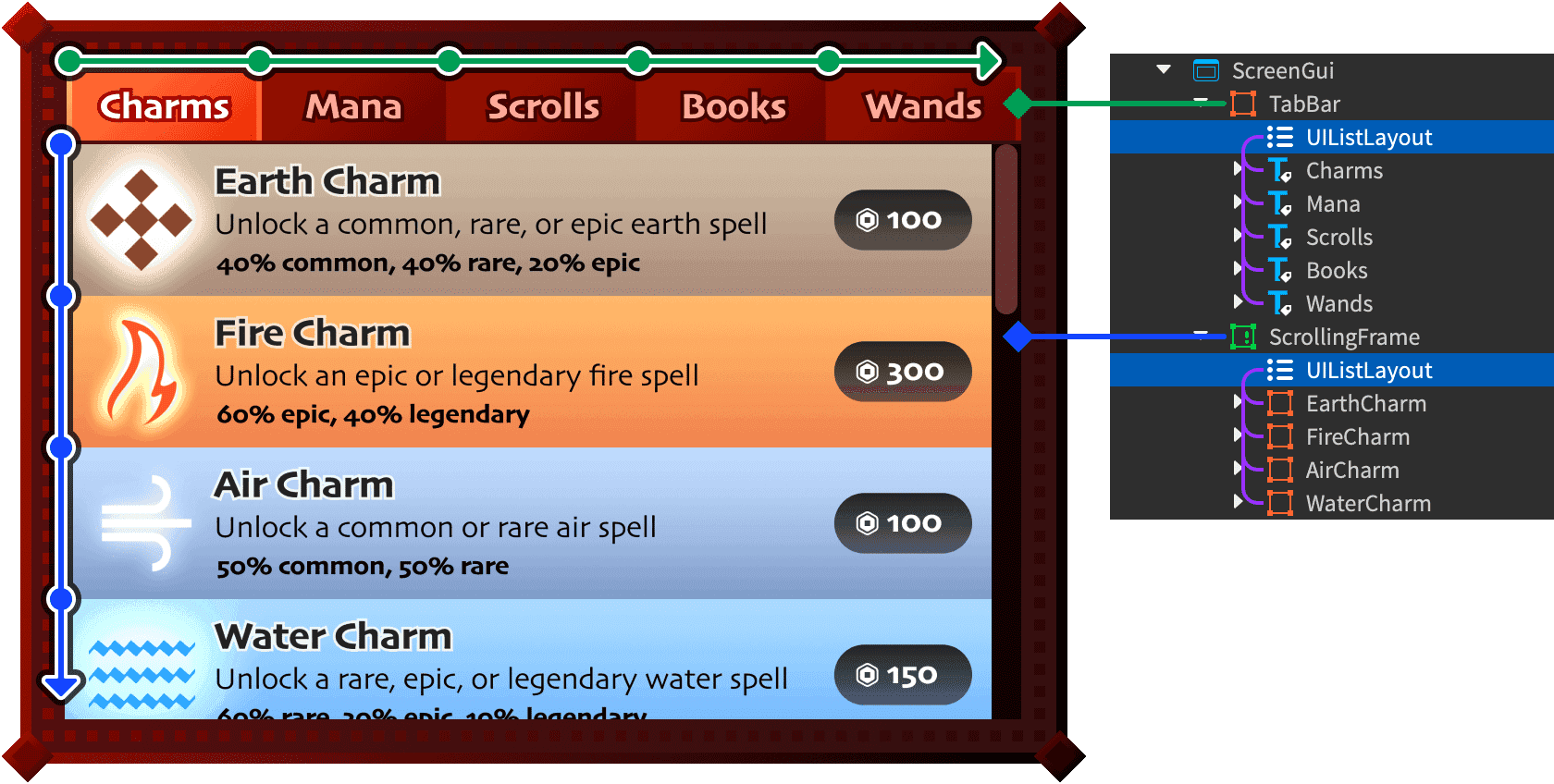
Example of how Roblox organizes information in its menus.
Understanding the Core Tabs
Your main navigation bar is your best friend. Here’s what each tab does:
- The Home Tab: This is your personalized launchpad on the Roblox Dashboard. It displays recommended experiences based on what you play and what your friends are enjoying, making it a great place to start your daily adventure.
- The Discover/Charts Tab: When you want to see what’s trending, click the Discover/Charts Tab. Here, you can filter games by popularity, genre, and trending status to find the next big thing or a hidden gem that matches your mood.
- The Marketplace/Catalog: Think of this as Roblox’s ultimate digital mall. The Marketplace/Catalog is where you browse and purchase thousands of avatar items, from hats to outfits, using Robux. Many items are free, so you can start customizing without spending a dime.
- The Create Tab: Feeling inspired? The Create Tab is your direct portal to Roblox Studio, the free game development tool. This is where players become creators, building everything from simple obstacle courses to sprawling worlds.
The recommendation algorithm on your Home Tab learns from what you actually play and like. Spending more time in games you enjoy and favoriting them will train it to show you better, more personalized suggestions.
Personalizing Your Avatar
Your avatar is your identity in Roblox, and customizing it is half the fun. Head to the Avatar Editor via the left-hand menu under Avatar. Here, you can mix and match Clothing, Accessories, and animations to create a unique look.
Trust me, don't feel pressured to buy Robux items right away. Spend some time exploring the extensive catalog of free items first—you can build a fantastic style without spending any real money. The editor lets you preview everything, so experiment freely until you find a look that feels like you.
⚠️ Watch out: Avatar items like clothes and accessories are purely cosmetic. They don’t give you any gameplay advantages, so focus on style over stats when building your wardrobe here.
With your dashboard navigated and your avatar looking sharp, you’ve taken control of your Roblox experience. You’re no longer just clicking around—you’re exploring with purpose. Now, let’s get you into a game.
Universal Controls and Camera Management in Roblox
Alright, you’ve got your account and you know your way around the menus—now it’s time to actually play. Moving and looking around are the most fundamental skills in Roblox, but the controls can feel a bit different depending on whether you’re on a PC, a phone, or even a controller. Let’s break down the universal controls so you can jump into any experience with confidence.
PC Controls: Movement and Camera
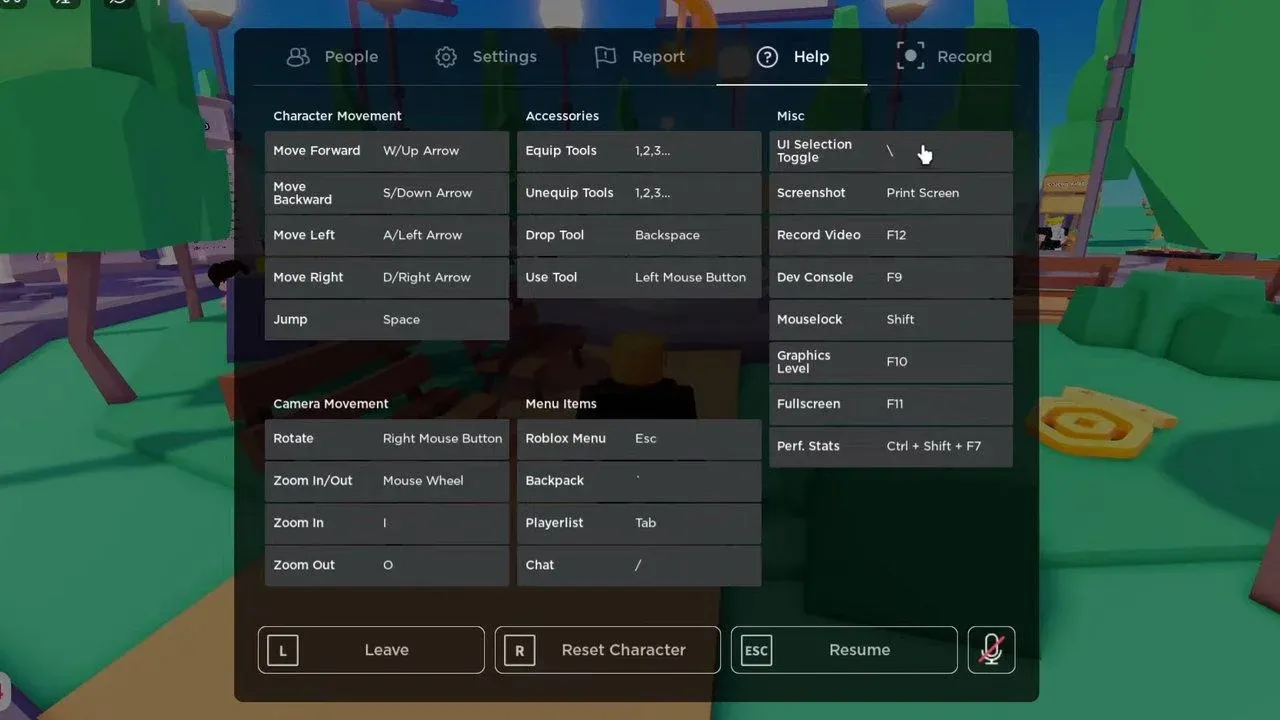
On a PC, you’ll use a classic keyboard-and-mouse setup. For Character Movement, press [W/A/S/D] keys to move forward, left, backward, and right. To jump, press the [Spacebar]. It’s intuitive and works in the vast majority of games.
Camera Management is just as important. Hold [Right-click] and move your mouse to freely rotate your view—this lets you look around corners or admire your avatar. To zoom your camera in or out, simply scroll the [Mouse Wheel]. Getting comfortable with this combination is key to navigating 3D spaces smoothly.
Mobile Controls: Touchscreen Navigation
Playing on a phone or tablet? Roblox adapts beautifully. For Mobile Movement, a virtual joystick appears on the left side of your screen. Drag your Left Thumb within this circle to walk in any direction. On the right side, you’ll find a jump button; tap it with your Right Thumb to leap over obstacles. The sensitivity is usually adjustable in the settings if it feels too fast or slow.
Universal Actions: Chat and Menus
No matter your device, two other controls are essential. To communicate with others, press [/] on your PC keyboard to open the In-Game Chat box, then press [Enter] to send your message. On mobile, a chat button is usually on-screen.
If you get stuck, need to adjust settings, or want to leave a game, press [Esc] on PC (or the menu button on mobile) to open the Game Menu. From here, you can reset your character, access settings, or safely exit the experience.
If your character ever stops responding to movement keys, check if you accidentally enabled UI Navigation (you’ll see yellow outlines on menu buttons). A quick fix is to press [Esc], select "Reset Character," or simply restart the game.
Mastering these controls means you’re no longer just a visitor in Roblox—you’re an active participant, ready to run, jump, and explore millions of worlds on your terms. Let’s go find your first game.
How to Find and Join Beginner-Friendly Games on Roblox
Your adventure in Roblox truly begins the moment you choose your first experience—but with millions of games at your fingertips, how do you know which ones are worth your time? This section cuts through the noise, showing you how to spot beginner-friendly gems and join them confidently.
How to Evaluate a Game Before You Join
Before clicking that tempting green Play button, take a moment to check the Experience Page. This is your due diligence. Here, you’ll find the game’s description, current player count, and user ratings. A high player count often signals an active, stable server, while positive ratings can indicate a welcoming community and well-designed mechanics. This quick scan helps you avoid buggy or overly complex games that might sour your first impression.
If you’re feeling overwhelmed by choice, use the Discover page filters. Sorting by “Popular” or “Top Rated” is a great way to surface high-quality, beginner-friendly experiences that have stood the test of time.
Top Beginner-Friendly Game Recommendations
Based on their clear objectives, forgiving learning curves, and massive player bases, here are three fantastic starting points. You can find any of them by typing their name into the Search Bar on the Roblox dashboard.
- Brookhaven RP is a city simulation perfect for social roleplay and getting comfortable with easy controls. There’s no pressure to “win”—just explore, chat with others, and drive around. It’s a low-stakes way to learn how to interact with the world and other players.
- Adopt Me! focuses on pet collection, progression, and trading mechanics. Its goals are simple and satisfying (hatch pets, decorate your house), and it introduces you to Roblox’s social and economic systems in a fun, guided way.
- Tower of Hell is a challenging obstacle course (or “obby”) highly recommended for practicing precise jump timing and camera control. While difficult, its checkpoint-based design teaches persistence and core platforming skills that are useful across hundreds of other Roblox games.
The Quiet Signs of a Good Starter Game
Beyond specific titles, look for these universal signs of a beginner-friendly experience, inspired by developer best practices:
- A Clear First Action: When you spawn in, is there one obvious thing to do? A glowing object, coins placed on your path, or a giant button? Good games guide you without a wall of text.
- Progressive Disclosure: The UI shouldn’t overwhelm you with every stat and menu at once. Well-designed games reveal new tabs and features as you play and learn.
- Immediate Feedback: When you click something, does the game respond with a sound, particle effect, or animation? This “juice” makes the game feel responsive and alive.
If you join a game and feel lost within 30 seconds, don’t blame yourself—it’s likely a design issue. It’s perfectly okay to leave and try another. The beauty of Roblox is that there’s always another incredible experience just a click away.
With these strategies, you’re no longer just randomly clicking games. You’re a savvy explorer, equipped to find adventures that will welcome you in and keep you coming back. Now, go find your favorite.
Understanding Robux and the Roblox Economy
Welcome to the economy of Roblox—a digital marketplace where millions of players trade, customize, and unlock new experiences. Understanding the flow of Robux, the platform’s premium currency, is key to navigating this world without getting lost or scammed. Let’s break down how to earn it, spend it wisely, and protect your account in the process.
What is Robux and How to Get It
Robux is Roblox’s virtual currency, used to purchase cosmetic outfits, game passes, and developer products that enhance your gameplay. Think of it as your digital wallet for premium content.
Acquiring Robux legitimately is straightforward. Head to the Robux Tab on your Roblox dashboard to purchase it directly with local currency, redeem a Roblox gift card, or link to programs like Microsoft Rewards. For creators, the official path is the Developer Exchange (DevEx) program, which allows verified developers on create.roblox.com to convert earned Robux into real money after meeting certain thresholds.
⚠️ Critical safety tip: Never visit third-party “Free Robux” sites or share your password with other users. These are universally scams designed to steal your credentials, install malware, or trick you into endless ad loops. Roblox’s security team actively shuts these down, but your best defense is to stick to official channels.
Spending Smart: Know What You’re Buying
Before you click “Purchase,” pause and read. In Roblox, not all items are created equal, and your Robux should be an investment in fun, not a source of regret.
- Cosmetics vs. Gameplay: Avatar items—like hats, outfits, and animations—are purely cosmetic. They change your look but do not buff your stats or abilities in any game. Game passes and developer products, however, often unlock special features, abilities, or content within a specific experience.
- Do Your Research: Always check an item’s description and reviews before buying. See what other players say about its value or functionality. If you’re buying a game pass, try the experience first to see if you enjoy it enough to invest.
This mindset helps you avoid impulse buys on items you’ll never use and ensures your Robux goes toward things that genuinely improve your time in Roblox.
The Bigger Picture: Creators and the Ecosystem
Remember, every item you buy supports another player. Experience Developers are users who build the games you love on create.roblox.com. They earn Robux through your purchases of their game passes and developer products, which they can then convert via DevEx. This creator economy is what keeps Roblox thriving with fresh, innovative experiences.
When you spend thoughtfully on quality games and items, you’re not just customizing your avatar—you’re voting with your wallet for the kind of content you want to see more of on the platform.
With a clear plan for earning, a critical eye for spending, and a firm stance against scams, you’re ready to engage with the Roblox economy confidently. Now go forth, customize, and unlock—your digital adventure awaits.
Troubleshooting Movement and UI Issues in Roblox
Nothing kills the fun in Roblox faster than your character freezing mid-jump or the UI hijacking your controls. If you’re stuck, lagging, or can’t move, you’re not alone—these are some of the most common tech hiccups players face. The good news? They’re almost always fixable with a few quick steps.

Visual styling like UI strokes can help distinguish interactive elements during troubleshooting.
When Your Controls Stop Working
This is the classic “Roblox can’t move” glitch, and it often boils down to one of two culprits: a buggy UI Navigation toggle or a simple game hiccup.
First, check if you’ve accidentally enabled UI Navigation. This accessibility feature lets you navigate menus with arrow keys or a gamepad, but it can lock your character controls. If you see yellow outlines around menu buttons, that’s the sign. The quick fix? Unplug any connected gamepads or controllers and reopen the game. If that doesn’t work, try resetting your character by pressing [Esc] and selecting Reset Character, or restart the Roblox application entirely.
If you’re on PC, pressing [Backslash] or [Tab] can sometimes trigger UI Navigation by accident. If your movement keys suddenly stop working, try hitting those keys again to toggle it off before you do anything else.
If UI Navigation isn’t the issue, you’re likely dealing with a temporary game bug. These can freeze your character or make controls unresponsive. The universal fix here is the same: open the in-game menu with [Esc], select Reset Character, or close and restart the game. Refreshing the experience usually clears these glitches right up.
Fixing Lag and Performance Issues
Choppy gameplay can ruin even the best Roblox experience. The main causes are usually high graphics settings, a poor internet connection, or too many programs running in the background.
Head to the in-game Settings menu and switch to Manual Graphics Mode. Here, you can [L-click] the minus button to lower the quality slider. Dropping it a notch or two can make a huge difference in crowded servers. For connection issues, try switching from Wi-Fi to an Ethernet cable if possible, and close bandwidth-heavy background apps like browser tabs with videos.
⚠️ Watch out: Don’t just lower all settings blindly. Sometimes, a specific effect is causing the lag. Try lowering one setting at a time in Manual Graphics Mode to see what gives you the best performance boost.
Solving Crashes and Launch Errors
If Roblox won’t even start, corrupted local files are often to blame. This is a common fix for PC users. Press [Win+R] to open the Run dialog, type %localappdata%, and press Enter. In the window that opens, find and delete the entire Roblox folder. Afterward, restart your computer and reinstall Roblox from the official website. This clears the cache and often resolves persistent launch errors.
Staying Safe and Reporting Issues
While dealing with bugs, remember that Roblox has robust safety tools. If you encounter another user breaking the rules, you can report them directly. Open the in-game menu, select Report, choose the user, and specify the reason. This sends a notification to Roblox’s human moderation teams, who review reports submitted through the platform’s 2026 moderation dashboard.
With these fixes in your back pocket, you can spend less time troubleshooting and more time enjoying the vast world of Roblox. When something goes wrong, don’t panic—just work through the checklist: check for UI Navigation, reset your character, lower your graphics, or clear your cache. You’ve got this.